
Goal
Understand the clear difference between Windows Firewall policy and Windows Firewall rule in Intune, and configure both.
- Firewall policy: enable or disable Domain, Private, and Public firewalls, plus profile-level behavior.
- Firewall rule: granular control to allow or block a specific app or traffic scenario on any or all firewall profiles.
1) Create Windows firewall policy
In Intune admin center, go to:
- Endpoint security
- Firewall
- Create Policy
Set:
- Platform -> Windows
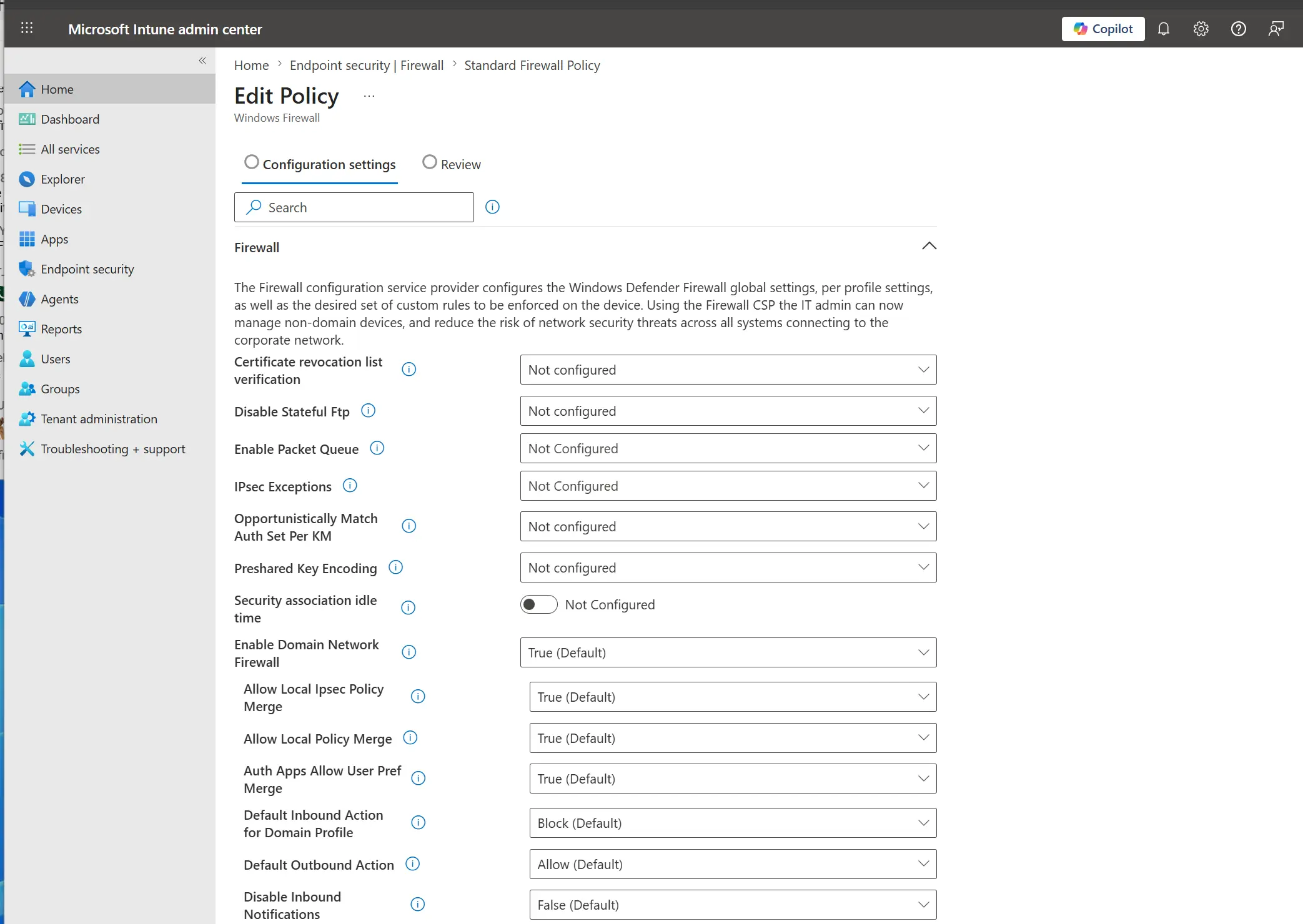
- Profile -> Windows firewall
Give the policy a name, for example Standard firewall policy.
You can leave many options as Not configured. The main three settings are:
- Domain Network Firewall
- Private Network Firewall
- Public Network Firewall
If you set these to Enable (True), additional options become available.
Image - Windows firewall policy profile settings
Add scope tags if required, then assign the policy to a group.
2) Create Windows firewall policy rule
For this test, we will block Microsoft Edge.
In Intune admin center, go to:
- Endpoint security
- Firewall
- Create Policy
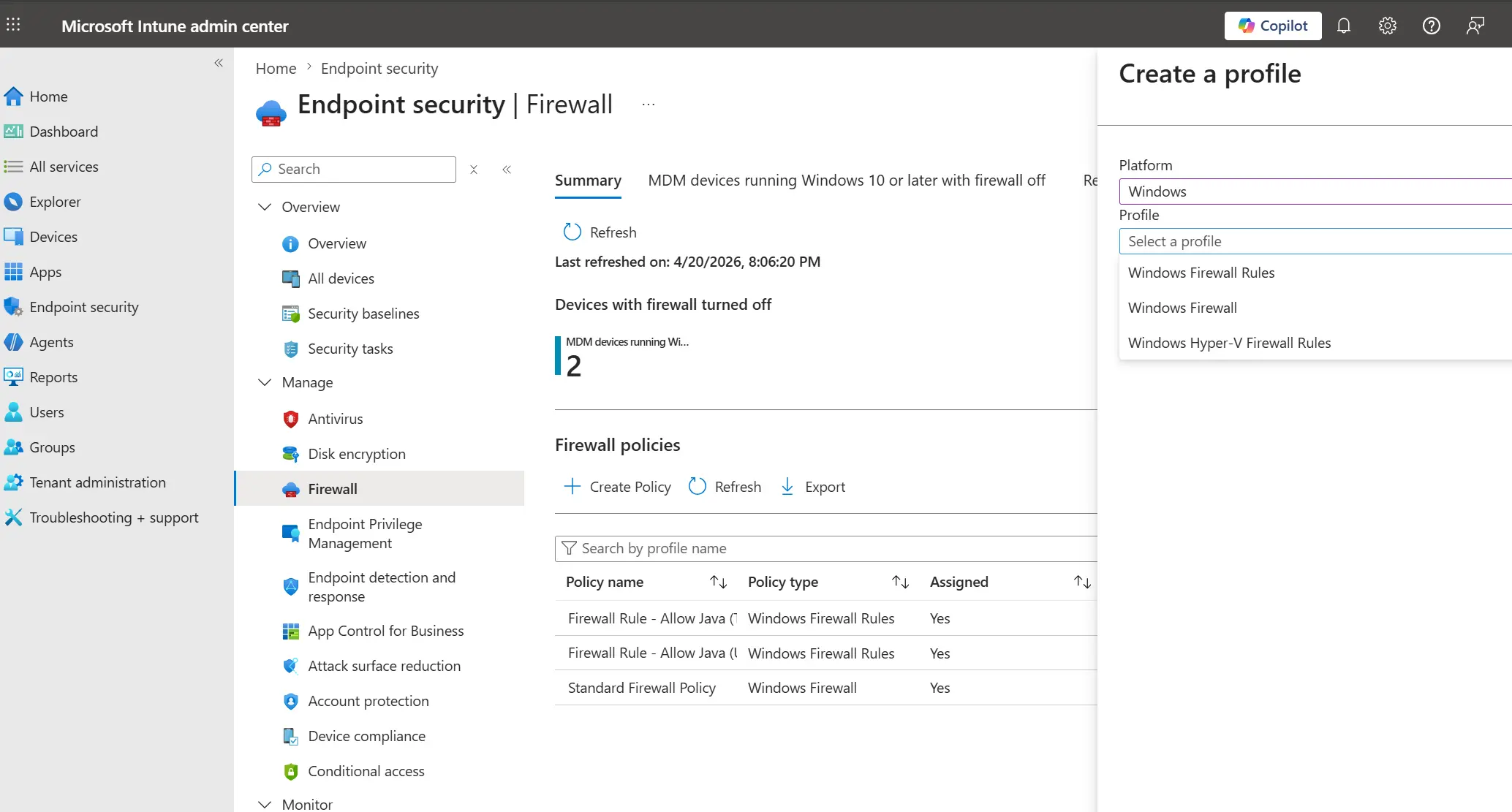
Set:
- Platform -> Windows
- Profile -> Windows firewall rule
Image - create Windows firewall rule profile
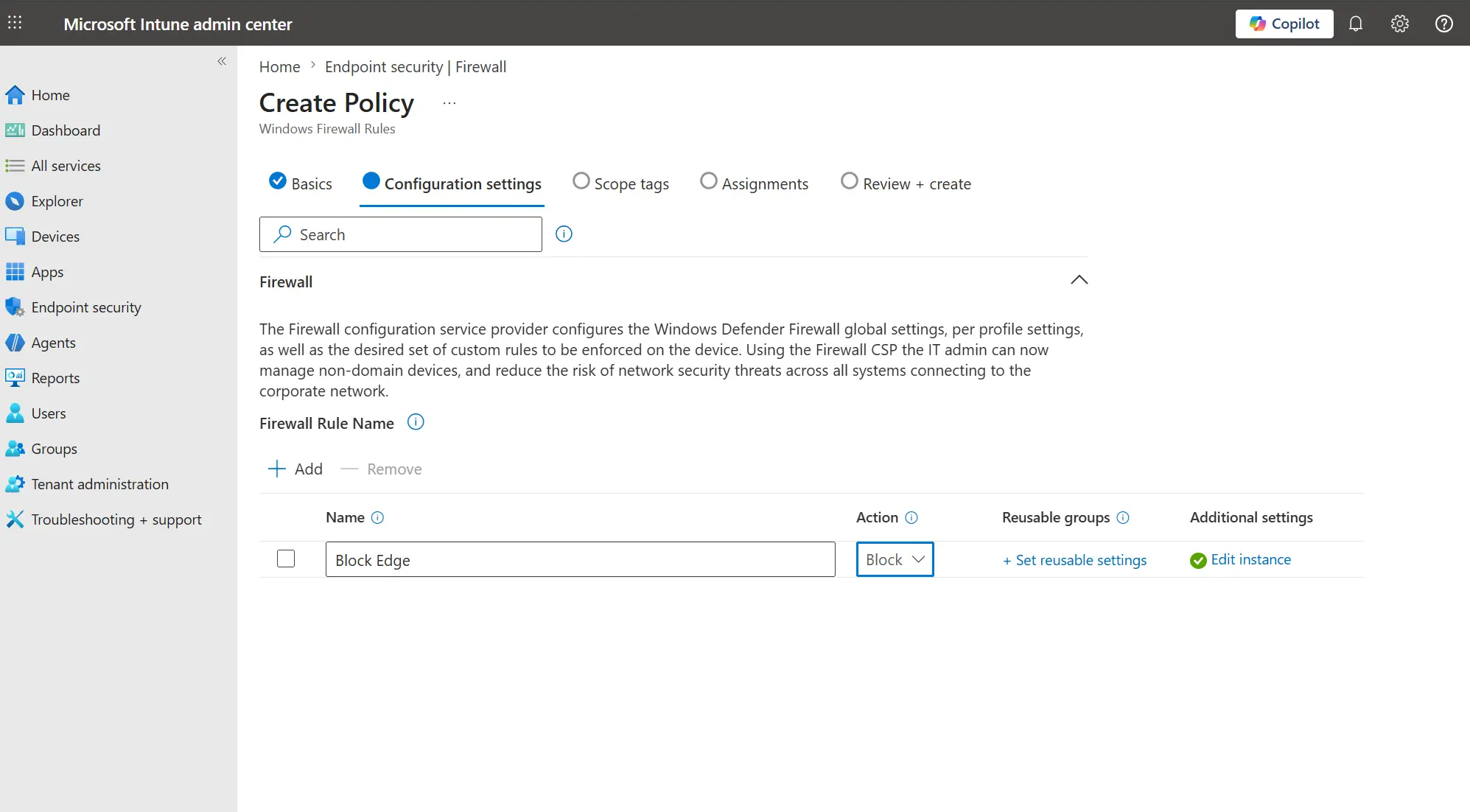
Under Firewall Rule Name, click + Add.
Set the rule details:
- Name the rule
- Action -> Block
Image - add firewall rule and set block action
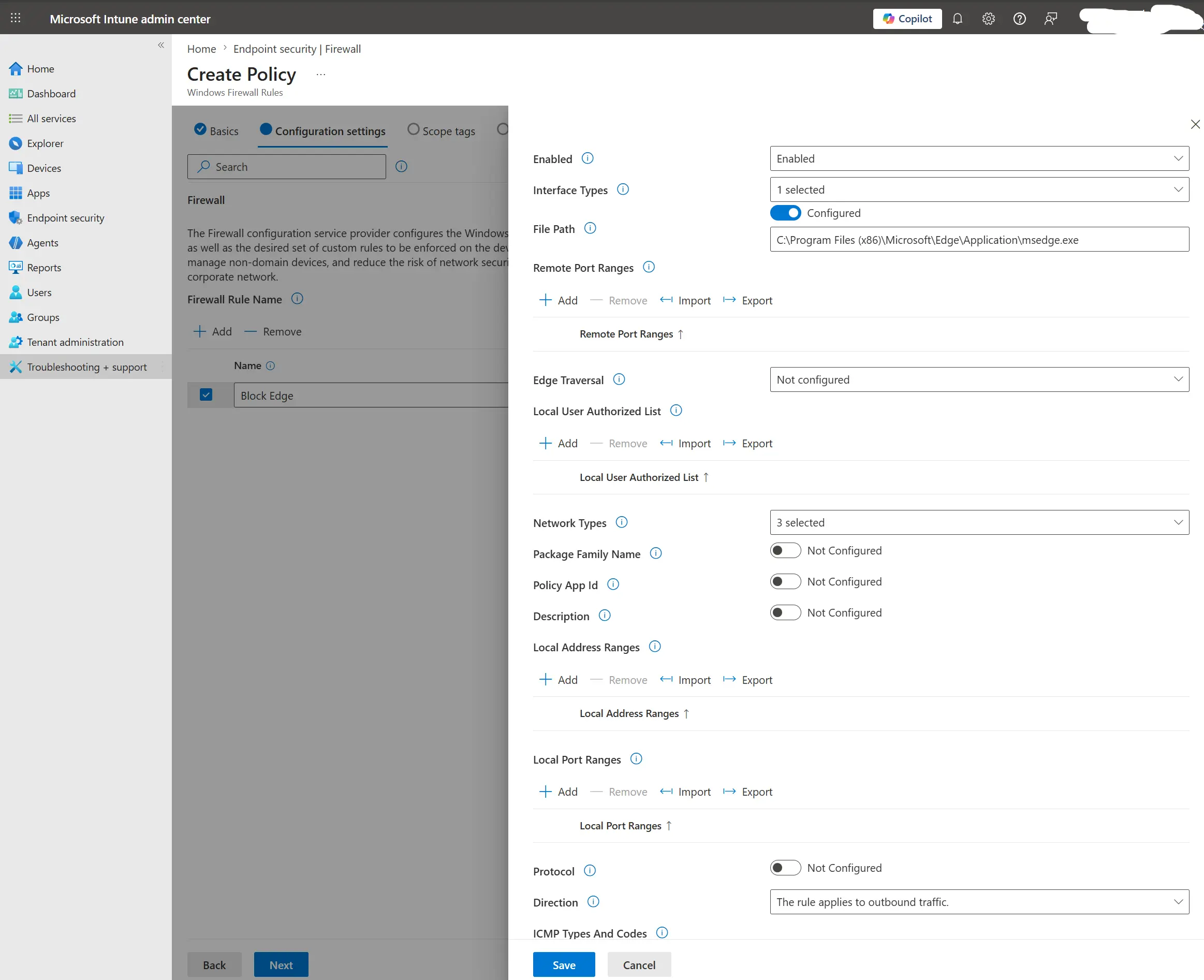
Then click Edit Instance and configure:
- Enable the rule
- Interface types -> All
- File path ->
C:\Program Files (x86)\Microsoft\Edge\Application\msedge.exe - Network types -> Domain, Public, Private
- Direction -> Outbound
Image - firewall rule instance settings for Edge
Click Save, add scope tags if required, and assign to a group.
Test the rule
Sync your test PC with Intune and reboot if needed.
Open Microsoft Edge and try browsing to confirm it cannot access the internet.
Note
In Azure/Intune, when an item is left as Not configured, it uses the platform default option.